

Segments
**What is a segment? **
A segment is a particular division of users who fall into the same bracket due to a common bond. For example, a segment could denote a group of users who live in a certain area or a group of users who have purchased a particular product.
**Why should I segment users? **
Segmenting users increase your marketing efficiency by sending targeted campaigns to the right users at the right time. Dividing users into segments improves results as the content is more precisely matched to the needs and wants of your customers.
**What types of segments can I build? **
Pulsate provides seven categories to build conditions on; Personal, Activity, Device Settings, Events, Location and Custom Data. Each parent category is divided further to create granular segments, providing even deeper, more targeted data.
Segment by Personal
| Segment by Personal | Option to select | Input Value Type |
|---|---|---|
| Personal > Alias | equal to, not equal to, starts with, ends with, contains | String |
| Personal > Email | equal to, not equal to, starts with, ends with, contains | String |
| Personal > First Name | equal to, not equal to, starts with, ends with, contains | String |
| Personal > Last Name | equal to, not equal to, starts with, ends with, contains | String |
Segment by Activity
| Segment by Activity | Options To Select | Input value | Option to select | Input values | Option to select |
|---|---|---|---|---|---|
| Activity > Signup | less than, more than, between, equal to, not equal to | Number | minutes, hours, days, weeks, months, years | none | none |
| Activity > Number Of Sessions | less than, more than, between, equal to, not equal to | Number | none | none | none |
| Activity > Last Active | less than, more than, between, equal to, not equal to | Number | minutes, hours, days, weeks, months, years | none | none |
| Activity > Last Contained | less than, more than, between, equal to, not equal to | Number | minutes, hours, days, weeks, months, years | none | none |
| Activity > Last Contacted Admin | less than, more than, between, equal to, not equal to | Number | minutes, hours, days, weeks, months, years | none | none |
| Activity > Last Contacted Open | campaign , campaign group | select a campaign from the dropdown | less than, more than, between, equal to, not equal to | Number | minutes, hours, days, weeks, months, years |
| Activity > Opt Out | True, False | none | none | none | none |
Segment by Device Settings
| Segment by Device Settings | Option to Select | Input Value |
|---|---|---|
| Device Settings > Device Guid | less than, more than, between, equal to, not equal to | String |
| Device Settings > Device Language | less than, more than, between, equal to, not equal to | String |
| Device Settings > Device Timezone | less than, more than, between, equal to, not equal to | String |
| Device Settings > Device Token | less than, more than, between, equal to, not equal to | String |
| Device Settings > Device Type | Any, iOS, Android | none |
| Device Settings > Device App Version | less than, more than, between, equal to, not equal to | Number |
| Device Settings > OS Version | less than, more than, between, equal to, not equal to | Number |
| Device Settings > Device SDK Version | less than, more than, between, equal to, not equal to | Number |
| Device Settings > IP | equal to, not equal to | Ip Address |
| Device Settings > Device Push Permission | True , False | none |
| Device Settings > Device Location Permission | True, False | none |
Segment by Location Events
| Segment by Location Events | Option to Select | Option To Select | Option To Select | Input Value | Option To Select |
|---|---|---|---|---|---|
| Location Events > Last Been At | Beacons: Beacon, Beacon Group. Geofences: Geofence, Geofence group | List of registered beacons, to select one or List of registered geofences, to select one | less than, more than, between, equal to, not equal to | Number | minutes, hours, days, weeks, months, years |
| Location Events > Number Of Visits to | Beacons: Beacon, Beacon Group. Geofences: Geofence, Geofence group | List of registered beacon locations, to select one or List of registered geofences, to select one | less than, more than, between, equal to, not equal to | Number | none |
Segment by Events
| Segment by Events | Option to Select | Option to Select | Input Value | Option To Select | Option To Select |
|---|---|---|---|---|---|
| Events > Last in App Event | From list of events to select one | less than, more than, between, equal to, not equal to | Number | minutes, hours, days, weeks, months, years | ago, away |
| Events > Number of Event Occurrences | From list of events to select one | less than, more than, between, equal to, not equal to | Number | none | none |
| Events > Event Recorded | From list of events to select one | True, False | none | none | none |
Segment by Location
| Segment by Location | Input value | Input Value |
|---|---|---|
| Location | Location Name | Distance in meters |
Segment by Custom Data
| Segment by Custom Data | Option to Select | Input Value |
|---|---|---|
| Custom data | Custom Options | Custom Input |
How to build a segment in Pulsate
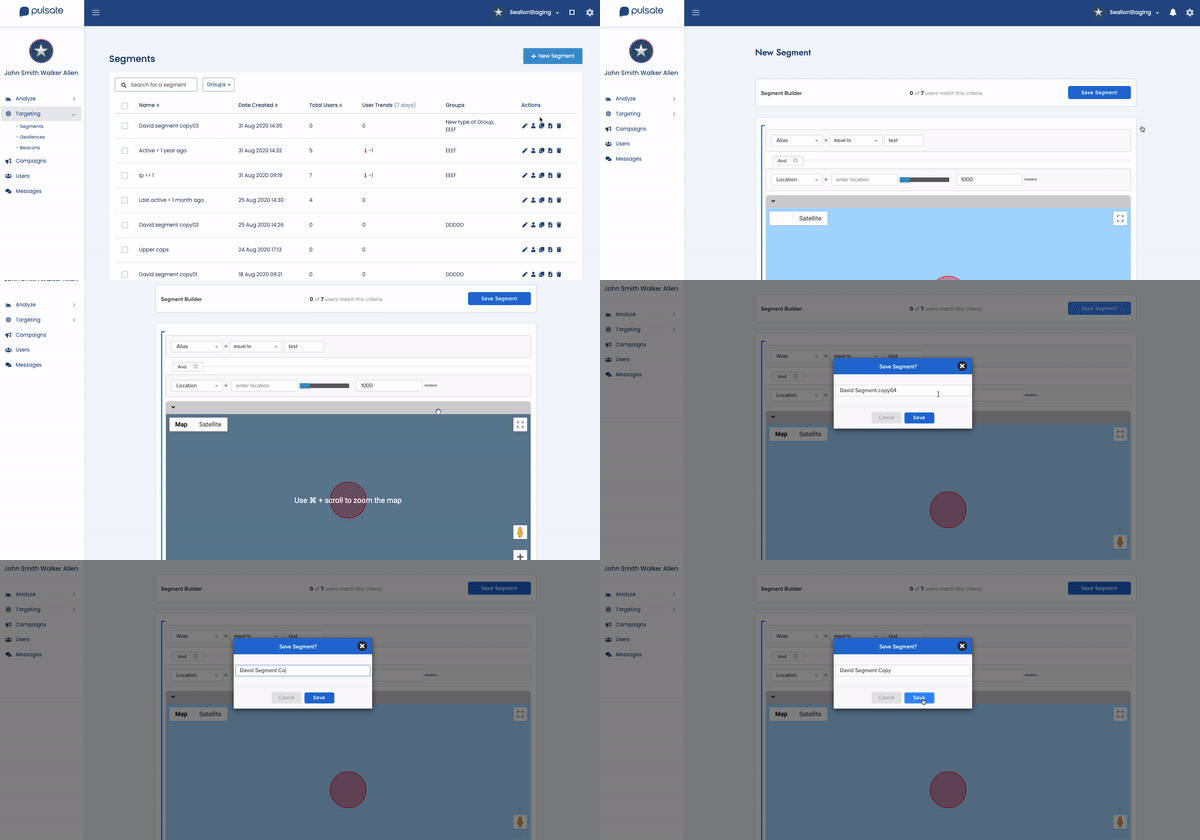
Segments can be built on Pulsate once you have integrated the SDK (Software Development Kit). To create a segment, click the “+ New Segment” button to be taken to the segment builder page.
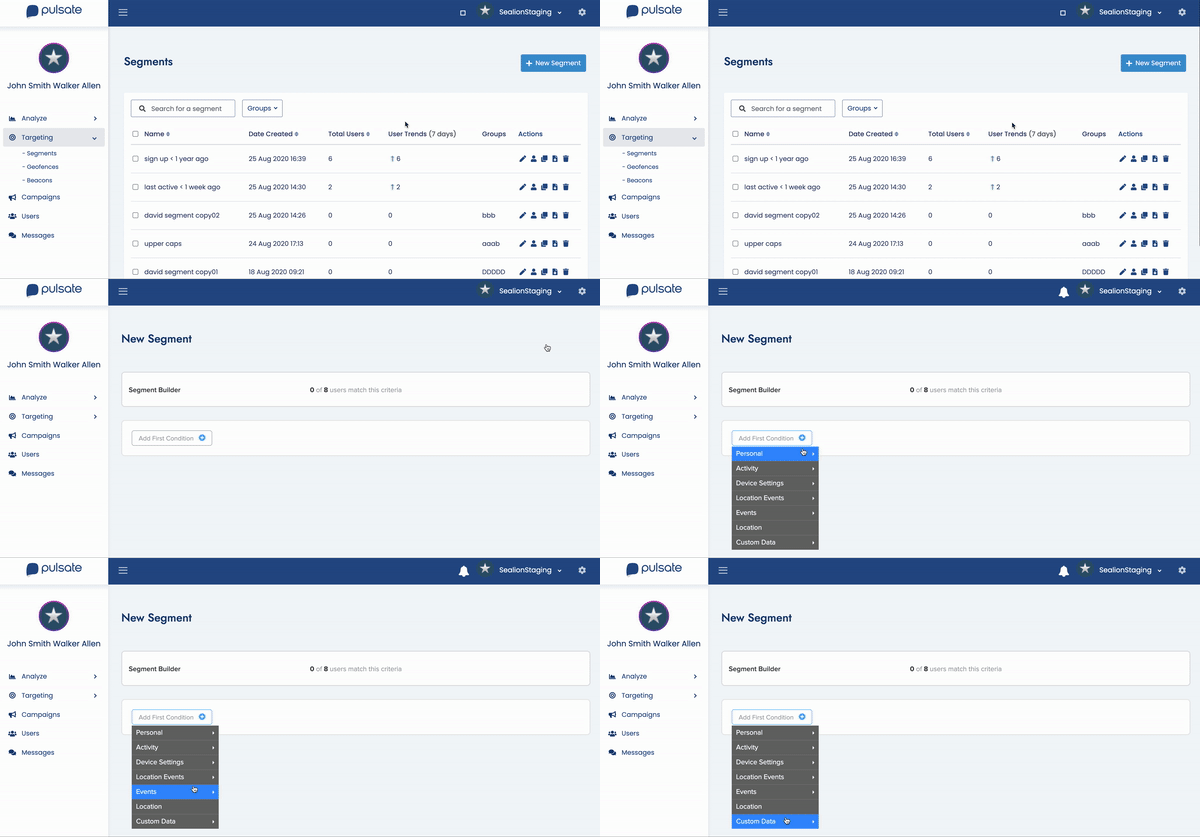
Here you can add one or multiple conditions from the drop down menu to start building your segments out. All app users will initially be included in your segment until a condition is added. The more conditions added, the more specialised your segment gets.
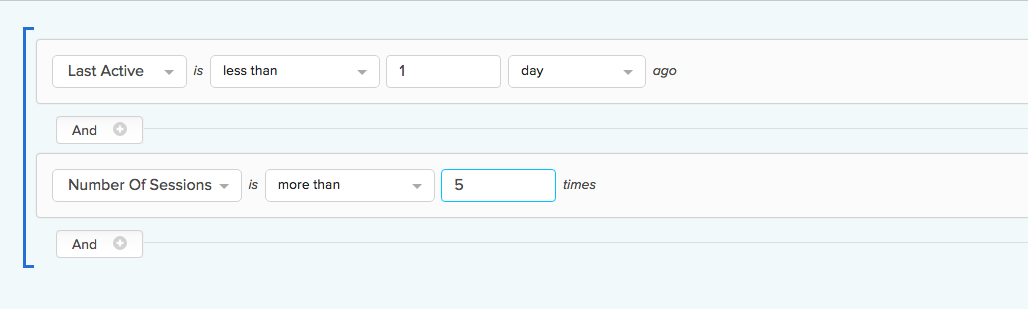
How to segment users based on the language of their device
Pulsate allows you to segment users based on the language of their device. To segment users based on language, click on New Segment > Device Settings > Device Language:
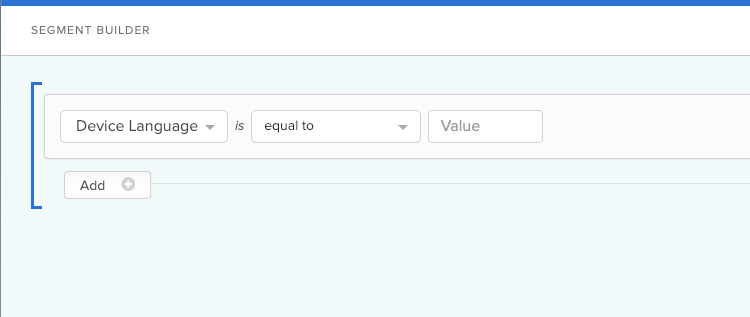
You can then enter the language code that you wish to segment users based on into the Value field. The language codes should be in the ISO 639-1 Language Codes format. Specific examples of codes for each language can be found in our SDK documentation here
How to build out your segments using ‘And’ or ‘Or’ conditions
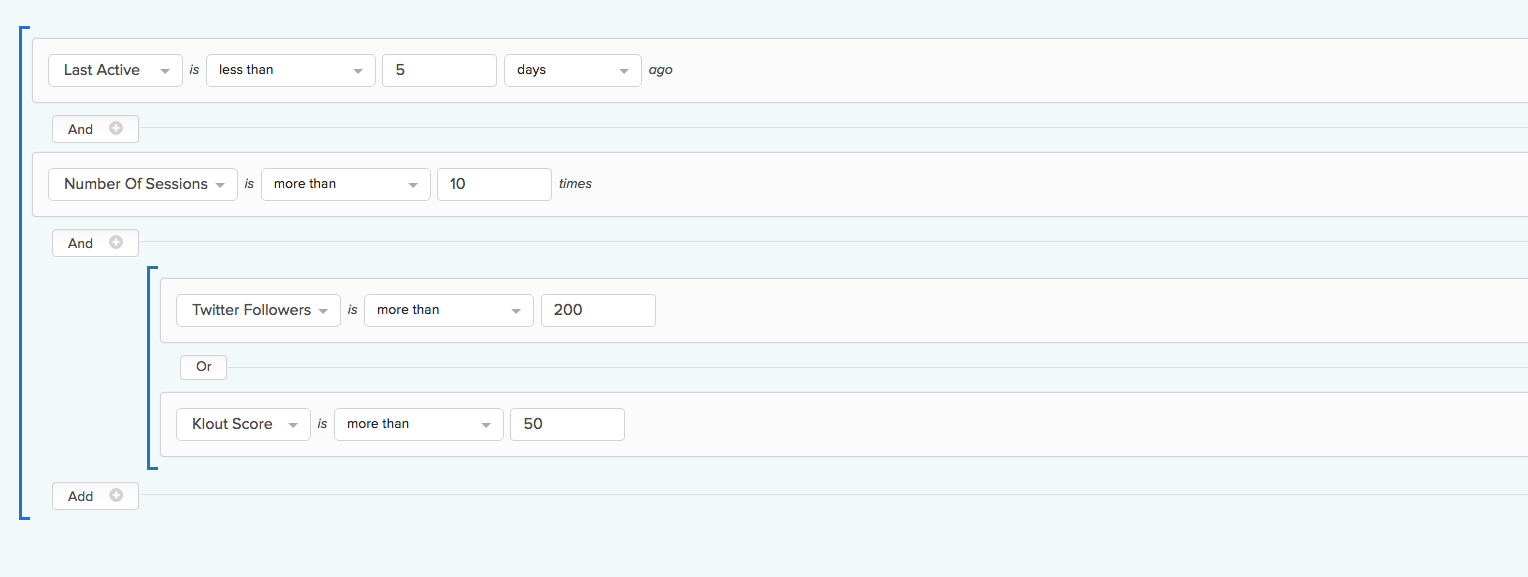
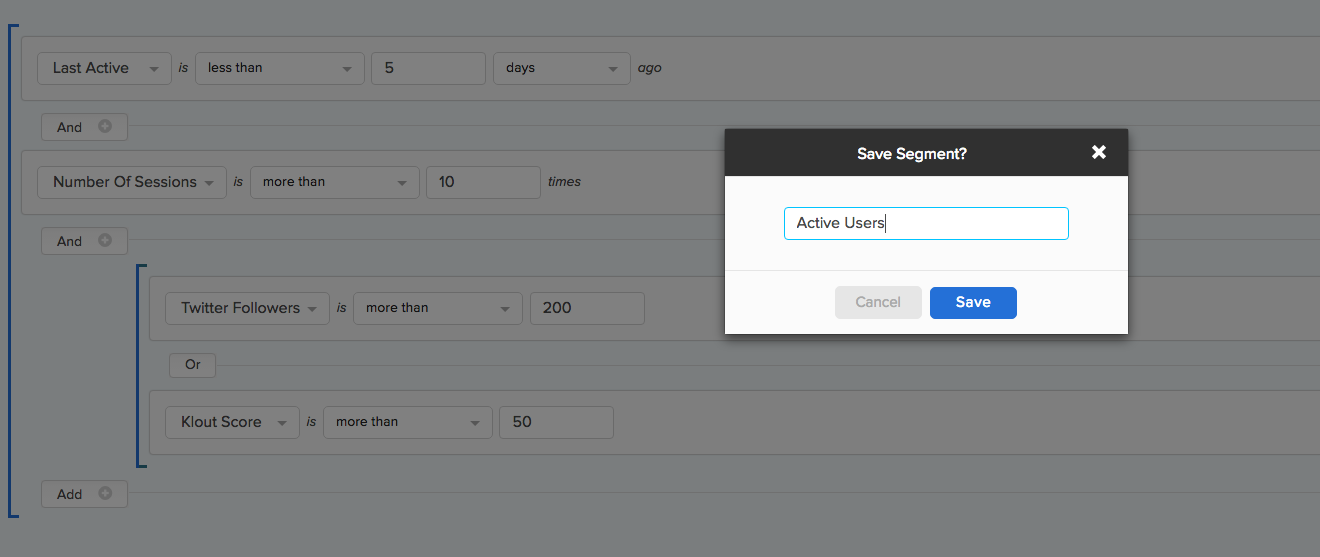
After you have added your first condition, you can build out segments further using both ‘And’ or ‘Or’ conditions. To add either an ‘And’ or ‘Or’ condition select the ‘Add’ button underneath the first condition and choose the relevant option. The ‘And’ condition when selected will automatically place another ‘And’ condition directly underneath the previous. If an ‘Or’ condition is selected it will indent and nest underneath the previous condition with an option to add further ‘or’ conditions underneath.
Saving your segment
When you have finished creating your first segment click ‘save segment’ in the top right hand corner of the page. This will activate a popup modal where you can then name and save your newly created segment of users.
Locating and viewing your saved segment
After you have named and saved your segment it will automatically appear in the list of previously created segments in the Targeting section of the campaign builder under ‘Segments’.
How to use custom data to build segments
Import your custom data to the Pulsate cloud to create granular segments specific to your brand and the actions of your customers.
Dynamic Updating of User Segments
Users will move in and out of saved segments dynamically as their behaviour, social, and geospatial data updates in real-time.
Segment Action Buttons
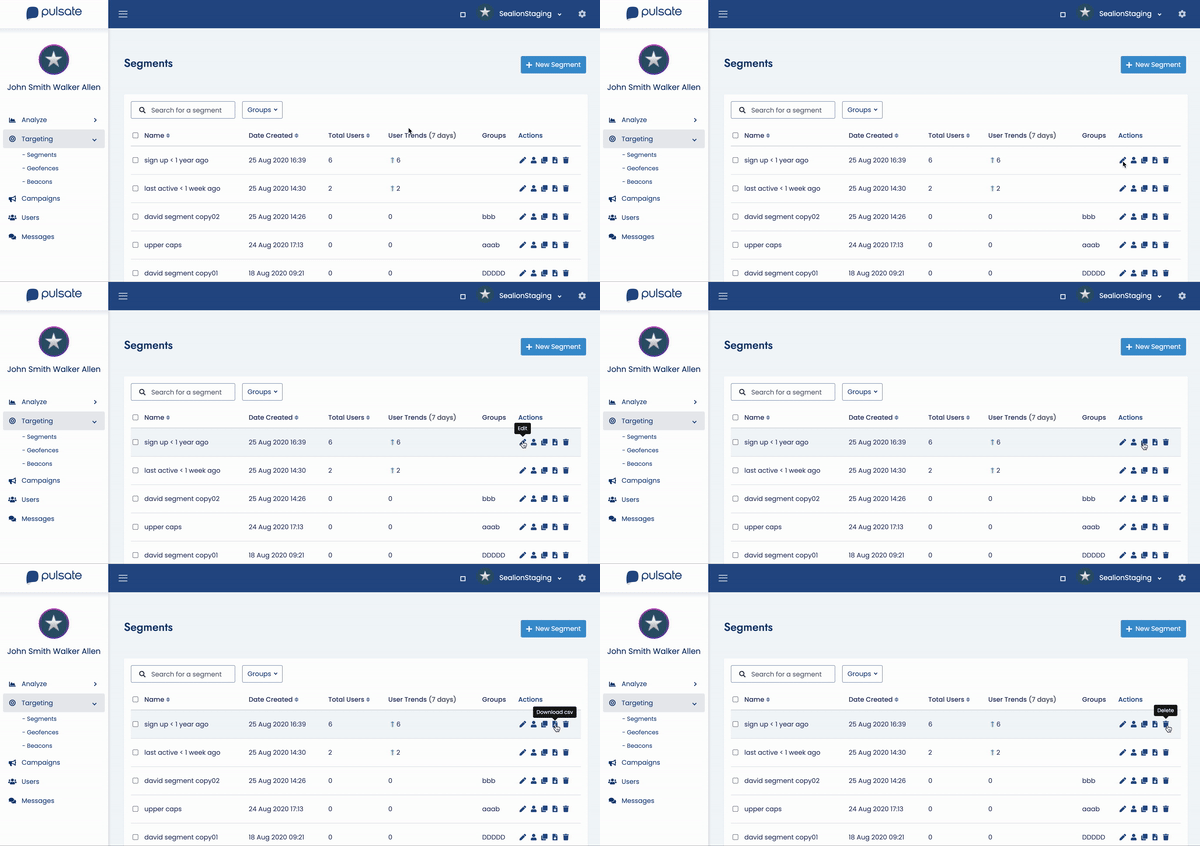
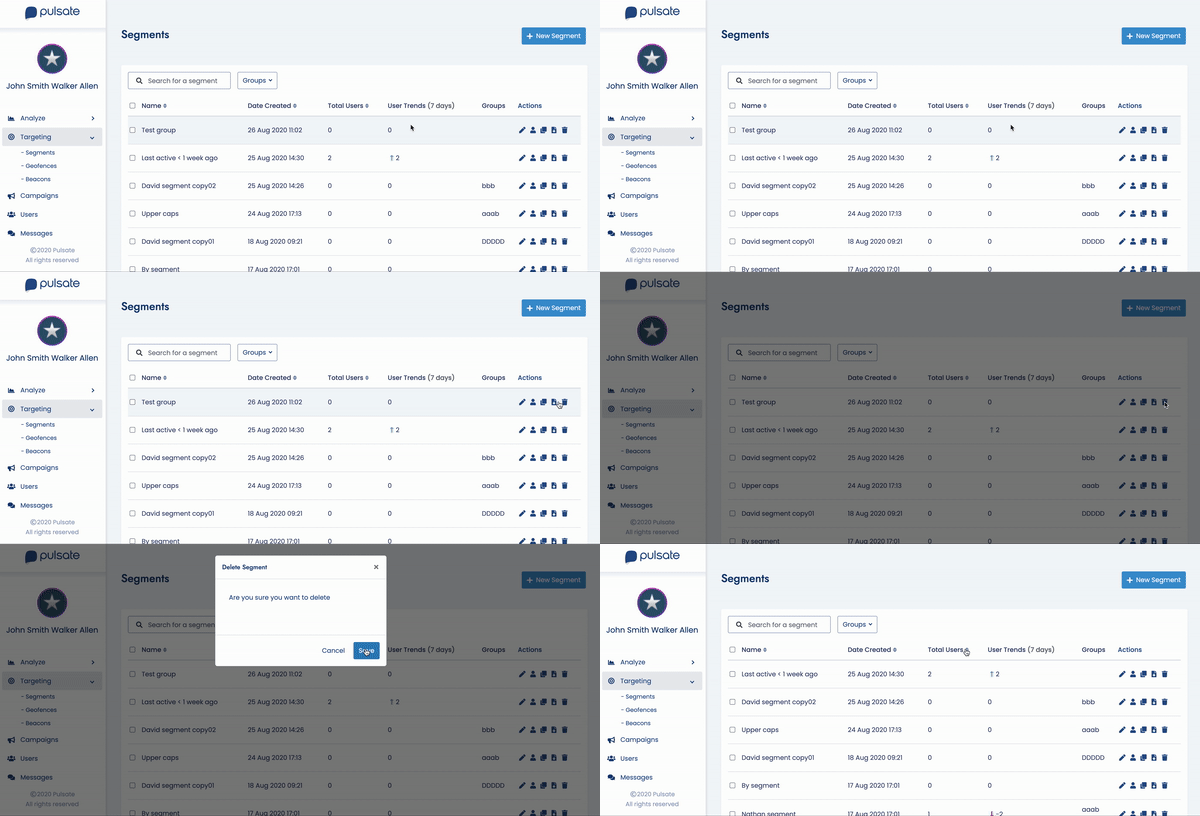
The action buttons located beside each segment allows to edit a segment, view segment users, duplicate segment, export and delete segments.
Action Buttons
| Name | Description |
|---|---|
| Edit | Allows to edit the segment |
| View Users | Allows to view users in the segment |
| Duplicate | Allows duplicate segment |
| Download | Allows to download segment users data |
| Delete | Allows to delete a segment permanently |
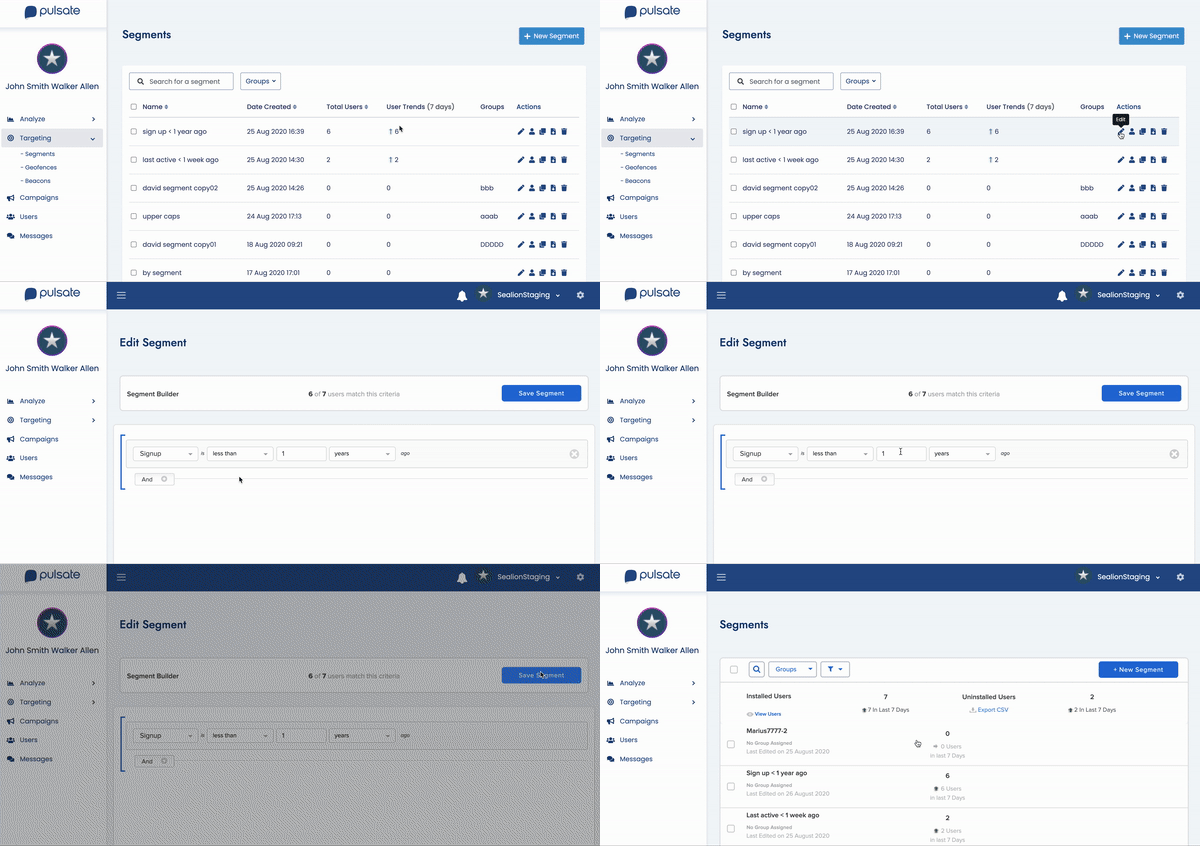
Edit Segment You can edit a segment anytime simply by clicking the edit icon which will bring you back into the segment builder. When you finished editing click Save Segment button. A new modal window pop up where you can insert/update segment name then click save button.
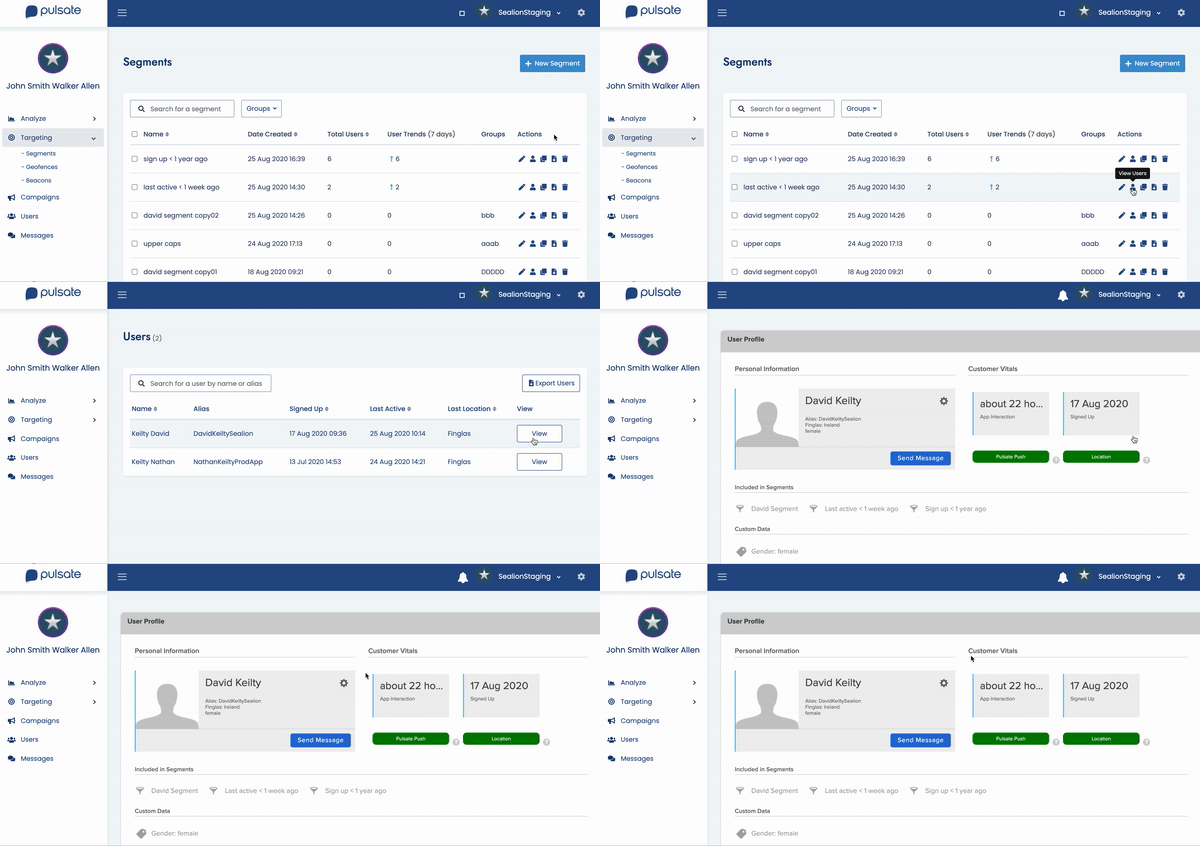
View Segment Users Click “view users” button, it will open the list of users. Then click the “view” button to view user profile.
Delete a segment from Pulsate
To delete a segment in Pulsate, click “Delete” action button. A new modal window will popup to confirm the action. Click Delete. This segment has now been removed permanently from your segment list.
Duplicate Segment Allows duplicate an existing segment change or add more conditions and save as new one.
Export CSV
Data can be exported by clicking “Export CSV” located to the right of each segment. The exported CSV will be delivered to the logged-in user by email.
